
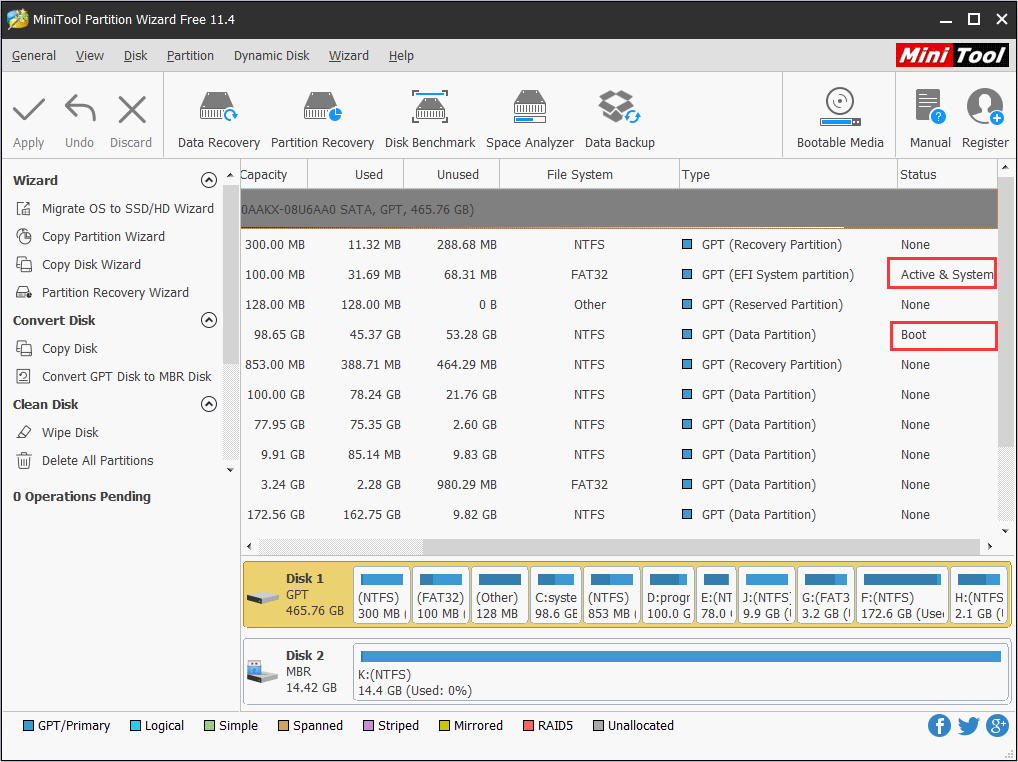
Disk layout
MBR vs GPT: choose the right map before cloning or extending
Updated May 2026 · 9 min read
Your partition style is not cosmetic—it decides how firmware finds your bootloader, how large a disk can behave predictably, and how many primary partitions you can keep without juggling extended containers.
What each style optimizes for
MBR dates to PC BIOS era assumptions: a small partition table near the start of the disk, classic boot code, and practical limits around very large boot disks when firmware is older.
GPT is designed for UEFI: redundant partition table copies, many partitions, and 64-bit logical block addressing so huge NVMe volumes stay addressable without awkward workarounds.
When conversion is worth discussing
Windows 11 prefers UEFI + GPT for fresh installs. If you are only adding a data disk, you can often initialize it as GPT while leaving an older MBR system disk untouched.
Converting a system disk is a firmware and bootloader project, not a single-button rename. Back up, capture recovery media, and verify you can still boot before removing the old layout.
How Partition Wizard fits
Partition Wizard surfaces the same partition map Disk Management shows, but with move/resize/clone wizards that explain pending operations before Apply.
Use it to visualize blocking partitions, plan unallocated placement, and queue safer sequences—still paired with backups because any disk tool assumes stable power.